
Termination
 Termination payments should be the final payments processed for an employee. Ensure that you first process any hours worked, leave taken, allowances and deductions prior to entering termination details.
In the Payrun Wizard, this screen is used to process any payments which an employee receives as a result of a termination, regardless of the reason for the termination.
Select the Termination node for the relevant employee.
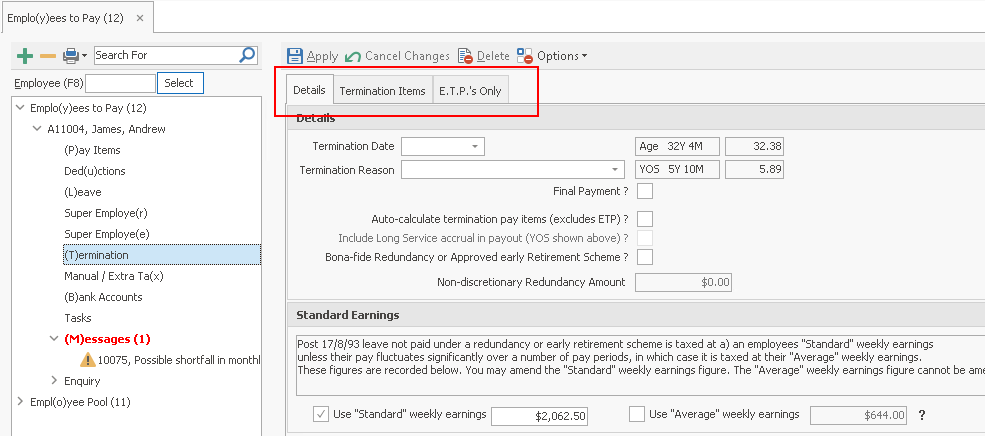
The screen is split into three tabs:
- Details which is where you complete information about the termination e.g. Termination Date & Reason. This information should be completed first.
- Termination Items which is where you define any payments due as a result of termination, such as outstanding leave entitlements or redundancy payments.
Leave balances are shown as a guide. This should only be completed once the details of the termination have been entered. - E.T.P.'s Only which is where you complete ETP information if an ETP is required to be paid out.
Completing a Termination Pay Entry:
- Select the Termination node for the employee.
The Termination screen will open showing the Details tab. - Complete the following information as required:
| Field | Explanation |
|---|---|
| Details | |
| Termination Date | Enter the date this employee will cease employment with this company. |
| Age |
Age at employment termination date is calculated automatically, both as years and months, and as a decimal value. This cannot be changed. |
| Termination Reason | Select the reason this employee is leaving,
or select <<Add New>> to create a new one. This is not an ATO requirement, but is a notation for your records. |
| YOS | Years of service at employment termination date is calculated automatically, both as years and months, and as a decimal value. This cannot be changed. |
| Final Payment | Tick this box to advise the ATO this is the final payment for this employee. |
| Auto-calculate termination pay items (excludes ETP)? | Ticking this option will cause the system to auto-generate the termination pay components (excluding ETP Components) on the Termination Items screen, for any unused Annual Leave |
| Include Long Service accrual in payout (YOS shown above)? | If Auto-calculate termination pay items has been selected then ticking this option will also generate a payout of the employee’s Long Service Leave (LSL) entitlements in the Termination Items screen. The employee’s Years of Service (YOS) is shown on the screen to assist you in determining if a long service leave payout is appropriate. |
| BonaFide Redundancy or Approved Early Retirement Scheme | If this is a Bona-fide (or Genuine) Redundancy or Approved Early Retirement Scheme payout, then select this option to activate the next field: Non-discretionary Redundancy Amount. If this is selected then any Lump Sum A (TPA) payments are flagged as R on the employee’s final STP submission. |
| Non-discretionary Redundancy Amount | This field is only active if the previous option (BonaFide Redundancy) is ticked. If active, you should enter the Non-discretionary Redundancy Amount which is the amount you are obliged to pay under the relevant industrial agreement for this employee.
|
| Standard Earnings
The earnings figure selected in this section will determine the tax on the Termination Current (TCU) component. This has two options Use "Standard" weekly earnings” (see employee's default pay settings) and Use "Average" weekly earnings. |
|
| Use “Standard” weekly earnings | This is the default setting and is calculated as the employee’s ‘Standard Hours x Standard Rate’ converted to a weekly figure. This amount can be overridden for the purposes of the termination pay tax calculation if required. |
| Use “Average” weekly earnings | This option may be used if the employee’s wage fluctuates significantly over a number of pay periods. It is calculated as the employee’s YTD taxable income / weeks this year (to date). It cannot be overridden. |
| E.T.P.'s only
ETP tax is calculated using the ETP Cap that is indexed and/or the non-indexed Whole of Income Cap. These values are automatically calculated and the Total ETP Tax represents the sum of these two. Note: if the Auto Tax option for this employee for this pay is turned off, the two ETP tax components can be manually entered / overridden. |
|
| ETP Date | If an ETP is being paid for this employee, enter the Date of payment here, this may be a different date to the Termination Date. Click Apply to enable ETP pay items on the Termination Items screen.
You will not be able to save an ETP date unless the employee has a birth date recorded so that the system can determine the preservation date. |
| ETP Tax (Excluded) ETP Tax (Non Excluded) |
The system will automatically calculate these values if you pay an ETP item on the termination items screen. |
| Total ETP Tax | This is the sum of the ETP Tax values, and is calculated automatically. |
| (a) Subsequent payment for same termination in current income year? | Where this ETP payment is related to a prior ETP you need to select one of these options.
Depending on the option chosen, the relevant ‘Excluded’ and ‘Non-excluded’ fields will be active. Based on the type of prior ETP payment/s made, you will need to complete the appropriate amounts here. |
| (b) Subsequent payment for same termination in previous income year? | |
| Prior ETP Amount
[Excluded and Non-Excluded] |
For prior ETP payments paid under ETP codes ‘R, S, D, B, N or T’, enter the prior ETP values into Excluded. Refer to the ATO website for ETP Code Descriptions. |
| Invalidity ETP
Note: An Invalidity ETP can have both ET3 and ET2 components depending on the amount of the Invalidity payment, the number of ‘Employment Days’ and the ‘Days to age 65’. Please refer to ATO documentation for the current formula. |
|
| Is this an Invalidity ETP | Select this option to define the ETP as an Invalidity payment.
This allows for the ETP – Post June 1994 invalidity (ET3) pay item to be selected in the Termination items window. |
| Employment Days | This is calculated automatically from the employee’s Hired Date and the Termination Date and cannot be changed. |
| Days to age 65 | This is the number of days between the Termination Date and their 65th birthday, automatically calculated from the employee’s Birth Date. Note: this figure will be zero if the employee is already over 65 years of age. |
| Death Benefit? | Select if a death benefit is being processed through the payrun. You can then select the payment recipient. |
- Once this information is complete, click Apply.
The details of the termination will be saved and processed by the system. - Select the Termination Items tab.
- The first section of this tab relates to the employee's leave balances, which cannot be edited here. These balances show the following:
| Field | Explanation |
|---|---|
| Annual Leave |
|
| Personal | The employee's current entitled hours (including this pay's accrual) less leave taken in this pay equals the final Personal Leave balance. |
| R.D.O. | The employee's current entitled hours (including this pay's accrual) less RDO's taken in this pay equals the final RDO Leave balance. |
| Flextime | Current entitled hours (including this pay's accrual). |
| Long Service | Entitlement Pre Aug '78 plus Entitlement Aug '78 to '93 plus Entitled Curr plus Pro Rata Curr (including this pay's accrual) less long service leave taken (Paid) in this payrun equals the final Long Service Leave balance Total. |
| Other Leave Balances | Click this button to see any other leave balances outstanding for this employee. Hours shown include this pay's accrual |
- Enter the details of any payments which the employee is receiving as a result of the termination, whatever the reason for the termination.
The pay items on this screen have been defined by the ATO, and tax calculations are according to current legislation.
 If you are unsure of the correct tax treatment of a termination payment,
check with your accountant or other reliable resource.
If you are unsure of the correct tax treatment of a termination payment,
check with your accountant or other reliable resource.
You can not create any new Termination Pay items as they will not calculate the correct termination tax or report correctly to the ATO.
- Complete the following information as required. If you want to add an additional Pay Item, click on the last line then press the down arrow to add a new line.
| Field | Explanation |
|---|---|
| Pay Items | Select the required pay item from the drop-down list. The pay items that are available here depend on the selection you have made in the Details tab. Generally, there are five options available, Term Pay Current and Lump Sums A, B, D & E. Some points to note:
|
| ETP Code | This is only relevant for ETP Lump Sum payments. The codes that are available here depend on the selections you have made on the Details tab. For further information on ETP codes, please refer to the ATO (document NAT70980). |
| HrsUnit | Enter the number of hours leave to be paid, or the number of units if applicable. |
| Uom | The unit of measurement for the selected pay item. This cannot be changed. |
| Rate | The system will automatically enter this employee's standard hourly rate, but this value can be overridden if required. |
| Factor | The factor is a multiplication which is applied to the termination item to calculate any weighting. This value cannot be edited here. |
| Amount | The amount is auto-calculated by the system, based on HrsUnit x rate x factor. |
| Memo | To record any notes relating to this termination item, double click in the memo field. Enter the memo text in the pop-up window. Select Print on Payslip if you want the memo to print on a payslip. |
| SGC Override | The ATO has changed the rules regarding superannuation on termination payments "In Lieu of Notice". These are now eligible for SGC super. By checking this box you are now able to calculate super on the necessary ET2 and TPD payment item types. |
| FINYEAR | This field is mandatory if you are paying a Lump Sum E amount for a previous financial year. Click the drop down to select the financial year. |
| Costing Allocation - Departments | this defaults to the employee's home department and indicates the department to which the payment will be costed. To cost the employee to a different department, select it from the list. Alternatively you can apply a costing split by selecting Multi Costing from the Options button found at the top of the panel. For further information see Costing Allocations. |
- Complete the details as required.
Once you have added all of the required Pay Items, click Apply.
The Termination items will be included into the pay.
Note: A warning message will be displayed if you are attempting to terminate an employee who is also an Administrator for Employee Self-Service Kiosk. This acts as a reminder to ensure that the role of the Employee Self-Service Kiosk Administrator is assigned to another employee.